Showing posts with label python. Show all posts
Showing posts with label python. Show all posts
Tuesday, February 21, 2012

Wednesday, August 3, 2011
Comparing the PROC & RAM performance of Ubuntu 11.04 with Windows 7
My Rig Thinkpad T420 41785ZA detail spec just google it, the only different just the RAM configuration 2 x 4GB
Comparing processor and memory perfomance using Geekbench2.1.13 in Windows 7 and Ubuntu. Only use Geekbench the 32 bit version (because the 64bit cost $19.99).
Detailed running schema + result:
Also i test it using commonly programming language(python + mpmath with gmpy) i used:
-The configuration and detailed python spec: (Click the image to view it bigger)
windows 7

ubuntu 11.04

-The Running time i give it try to run several times(executed +-5times, to see the best result, and give python(mpmath module) a chance to load(cached) into RAM)
windows 7

ubuntu 11.04

Comparing processor and memory perfomance using Geekbench2.1.13 in Windows 7 and Ubuntu. Only use Geekbench the 32 bit version (because the 64bit cost $19.99).
Detailed running schema + result:
- Both running in AC mode
- Windows 7 Professional 64 bit SP1 with all latest updates, power schema using Maximum Perfomance + Lenovo Turbo Boost enabled, scored 5844 http://browse.geekbench.ca/geekbench2/view/455508
- Ubuntu 11.04 Natty 64 bit with all latest updates, scored 7366 http://browse.geekbench.ca/geekbench2/view/455514
Also i test it using commonly programming language(python + mpmath with gmpy) i used:
-The configuration and detailed python spec: (Click the image to view it bigger)
windows 7

ubuntu 11.04

-The Running time i give it try to run several times(executed +-5times, to see the best result, and give python(mpmath module) a chance to load(cached) into RAM)
windows 7

ubuntu 11.04

Monday, June 27, 2011
Arbitrary Precision using Python Mpmath
Mpmath is great, powerful and easy to use to calculating equation that involve floating point.
I found several article that could be used to find minimal setting for arbitrary precision, enough the chat, let my code do the talk..
Software that used:
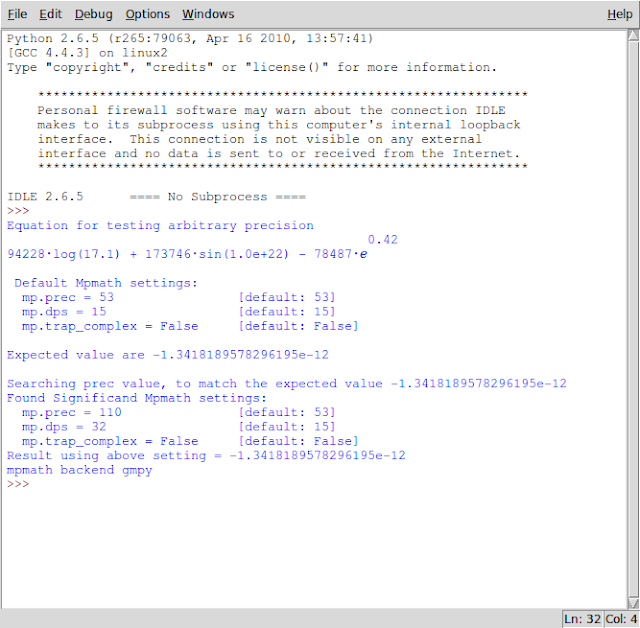
Below are 2 equations that could be used for searching significant setting for mpmath arbitrary precision.
1. Interval Arithmetic: Python Implementation and Applications by Stefano Taschini in SciPy2008_proceedings.pdf
GMPY Backend

SAGE Backend

Python Backend

2. Why and how to use arbitrary precision by Kaveh R. Ghazi, Vincent Lefèvre, Philippe Théveny, Paul Zimmermann in cise.pdf
GMPY Backend
SAGE Backend

Python Backend

Conclusion
I found several article that could be used to find minimal setting for arbitrary precision, enough the chat, let my code do the talk..
Software that used:
- python ver 2.6.5 in ubuntu 10.04 64 bit
- python EPD(Enthought Python Distribution) ver 7.0-2 32 bit in windows 7 64 bit, no default mpmath installation under python epd, but its available via sympy(included ver 0.14 mpmath)
- python mpmath ver 0.17, http://code.google.com/p/mpmath/
- gmpy -> python binding for GMP
- sage version 4.7 64bit for ubuntu10.04 http://www.sagemath.org/
Below are 2 equations that could be used for searching significant setting for mpmath arbitrary precision.
1. Interval Arithmetic: Python Implementation and Applications by Stefano Taschini in SciPy2008_proceedings.pdf
GMPY Backend

SAGE Backend

Python Backend

2. Why and how to use arbitrary precision by Kaveh R. Ghazi, Vincent Lefèvre, Philippe Théveny, Paul Zimmermann in cise.pdf
GMPY Backend

SAGE Backend
Python Backend

Conclusion
- different BACKEND in mpmath did not effect in result and mpmath.mp context(setting for arbitrary precision), just gives an performance effect(sage faster, than gmpy, last python)
- mpmath prec value that could be gives most precision is not less than 128 bit (mpmath.mp.prec=128)
- creating a mpf object is better to converted into string data type first( mp.mpf('0.1') or mp.mpf(str(0.1)))
- better doing a arithmetic rational operation when possible see first code that solved using sympy
Tuesday, June 21, 2011
Install OpenCL and PyOpenCL in Ubuntu 10.04 LTS Lucid Lynx 64 bit
After playing with Scientific Linux 6 with OpenCL and PyOpenCL, I decided to bring it into my primary OS, and yes it is Ubuntu 10.04 LTS Lucid Lynx 64 bit.
Searching through the net, I found two ways to install OpenCL
Because my previous experience in SL6 is worked, so i liked to doing so within my ubuntu.
Things that needed by my system for OpenCL(testing that it works by executing 'make all' in your $AMDAPPSDKROOT -> i put it on "/home/user/AMD-APP-SDK-v2.4-lnx64/", this will built samples application that included in samples folder)
 Below are some screenshoot to test sample applications under AMD-APP-SDK-v2.4-lnx64/samples/opencl/bin/x86_64/ directory if the installation of AMDAPPSDK and is working:
test using HelloCL
 test using GlobalMemoryBandwidth

and notice if running an OpenCL program using all processor thread(because i didn't have a GPU capable for OpenCL

And now for PyOpenCL(made by Andreas Klöckner at http://mathema.tician.de/software/pyopencl )
To install correctly please enable the internet connectivity its needed to install required python dependency module.
In my system is need to install libboost1.40-all-dev, python-numpy and python-libxslt. (Both are available from ubuntu repository). Using command from terminal -> sudo apt-get install libboost1.40-all-dev python-numpy python-libxslt
Installing PyOpenCl:

BTW I'm just noticed that python in ubuntu is faster than in Scientific Linux 6, and it same 64 bit, same laptop.
Searching through the net, I found two ways to install OpenCL
- by using a packaged deb made by nou at AMD dev central forum -> Ubuntu package with ATI Stream SDK
- and by installing it manually using the AMD-APP-SDK-v2.4-lnx64.tgz
Because my previous experience in SL6 is worked, so i liked to doing so within my ubuntu.
Things that needed by my system for OpenCL(testing that it works by executing 'make all' in your $AMDAPPSDKROOT -> i put it on "/home/user/AMD-APP-SDK-v2.4-lnx64/", this will built samples application that included in samples folder)
- read the guide AMD_APP_SDK_Installation_Notes.pdf (it just extract and put a conf in /etc dir)
- install libglu1-mesa-dev (in my case the package(header files) that missing is only this, so might be different on your system!), this needed when build a OpenCL samples
- also add a AMDAPPSDK in your $PATH in .bashrc file like this

test using HelloCL


and notice if running an OpenCL program using all processor thread(because i didn't have a GPU capable for OpenCL

And now for PyOpenCL(made by Andreas Klöckner at http://mathema.tician.de/software/pyopencl )
To install correctly please enable the internet connectivity its needed to install required python dependency module.
In my system is need to install libboost1.40-all-dev, python-numpy and python-libxslt. (Both are available from ubuntu repository). Using command from terminal -> sudo apt-get install libboost1.40-all-dev python-numpy python-libxslt
Installing PyOpenCl:
- download PyOpenCL from PyOpenCL
- Notice when execute configure.py : python configure.py --cl-inc-dir=$AMDAPPSDKROOT/include --cl-lib-dir=$AMDAPPSDKROOT/lib/x86_64 --cl-libname=OpenCL
- then -> python setup.py build
- finnally -> sudo python setup.py install

BTW I'm just noticed that python in ubuntu is faster than in Scientific Linux 6, and it same 64 bit, same laptop.
Saturday, May 14, 2011
Musing with booting time in Scientific Linux 6, Ubuntu Lucid, Windows 7
Just comparing in booting and login time between Scientific Linux 6, Ubuntu Lucid Lynx 10.04.2 LTS, Windows 7 Home Premium Service Pack 1, all system in 64 bit version.

All system already installed many software that can be used for daily activity like listening various audio formats, watching various video formats, office productivity, internet browsing, updated to the current version, installed in the same HDD(one laptop) with 4 partitions(Win 7, Ubuntu, SL, swap for Linux), development programs installed(C/C++ library, java SDK, python), converting audio/video(SL not).
Specific system configuration:
- Ubuntu mostly installed by many programs(my primary workstation), i didn't tuned it at all. Installed since it alpha version and just doing upgrade until now version 10.04.2 LTS, using live CD version 64 bit.
- SL only for fun and learning a red hat based distro. Installed from a 64 bit live DVD version.
- Windows, i use it for other software that Ubuntu not had yet, like visio, wathing HD movie using ATI vga instead using the AMD processor. And it installed an Antivirus from Microsoft Security Essential cause it rarely false alarm, and firewall using windows default, i knew it could boot faster without it, but it will make me installing windows again and again, many non Microsoft programs turned off on startup like java server, matlab server, etc. This Windows already installed when i bought the laptop, urgh yikes :( , i wonder how much the cost reduced while it not included Windows 7 :p .
The tests result

Below is the code to draw the figure(bar chart comparison) above, using Python with matplotlib module
#!/usr/bin/python

from matplotlib.pylab import arange, bar, xticks, title, ylabel, grid, show, legend

# ubuntu, sl, win
ut = [39, 7, 6]; st = [50, 10, 13]; wt = [44, 122, 20]

idx = arange(3)
wdx = 0.25

grid()
ub = bar(idx, ut, wdx, color='orange')
sb = bar(idx+wdx, st, wdx, color='red')
wb = bar(idx+wdx+wdx, wt, wdx, color='blue')
legend((ub[0], sb[0], wb[0]), ('Ubuntu 10.04', 'SL 6', 'Windows 7'))

xticks(idx+wdx, ('Booting', 'Login', 'Shutdown'))
ylabel('time in seconds')
title('Less is better')
show()
My measurement procedure:
- using stopwatch in Nokia N900 so my fingers reaction time are to be considered
- all systems booted from grub2 provided by Ubuntu lucid
- booting time measured from grub2 until it show login window
- log on time measured from pressing enter(password already entered) in login window until it show desktop and ready to use(including the LED of HDD not blinking again), well i can use(open a program) while the LED still blinking but it took the same time just like i wait LED off then open a program(yes in this case only happened with windows 7)
- just open an open office writer in all system, then close it
- shutdown time measured from pressing shutdown until the laptop turned off.
Tuesday, April 19, 2011
Install OpenCL and PyOpenCL in Scientific Linux 6 (RHEL 6, CEntOS 6)
My rig is 64 bit system with RedHat 6 based OS, but my fera not supported for OpenCL using VGA(3200), so it using SSE2 from L310 processor :(
Note that my Scientific Linux 6 installed from a 64 bit LiveDVD version, so might be a different step if using LiveCD.
Installing AMD APP:
$ ./HelloCL
HelloCL!
Getting Platform Information
Creating a context AMD platform
Getting device info
Loading and compiling CL source
Running CL program
Done
Passed!
Installing PyOpenCl:
Result Test Running examples benchmark-all.py
$ ./benchmark-all.py
('Execution time of test without OpenCL: ', 34.952448844909668, 's')
=============================================
('Platform name:', 'AMD Accelerated Parallel Processing')
('Platform profile:', 'FULL_PROFILE')
('Platform vendor:', 'Advanced Micro Devices, Inc.')
('Platform version:', 'OpenCL 1.1 AMD-APP-SDK-v2.4 (595.10)')
---------------------------------------------------------------
('Device name:', 'AMD Athlon(tm) X2 Dual Core Processor L310')
('Device type:', 'CPU')
('Device memory: ', 3706, 'MB')
('Device max clock speed:', 1200, 'MHz')
('Device compute units:', 2)
Execution time of test: 0.00733989 s
Results OK
Note that my Scientific Linux 6 installed from a 64 bit LiveDVD version, so might be a different step if using LiveCD.
Installing AMD APP:
- download AMD APP SDK from AMD-APP-SDK-v2.4-lnx64.tgz
- extract and install following this AMD_APP_SDK_Installation_Notes.pdf
$ ./HelloCL
HelloCL!
Getting Platform Information
Creating a context AMD platform
Getting device info
Loading and compiling CL source
Running CL program
Done
Passed!
Installing PyOpenCl:
- download PyOpenCL from PyOpenCL
- make sure C++ compiler(g++), python, numpy, C++ boost library are installed
- Tricky when execute configure.py: python configure.py --cl-inc-dir=$HOME/AMD-APP-SDK-v2.4-lnx64/include --cl-lib-dir=$HOME/AMD-APP-SDK-v2.4-lnx64/lib/x86_64 --cl-libname=OpenCL
- then just make -> su -c "make install"
Result Test Running examples benchmark-all.py
$ ./benchmark-all.py
('Execution time of test without OpenCL: ', 34.952448844909668, 's')
=============================================
('Platform name:', 'AMD Accelerated Parallel Processing')
('Platform profile:', 'FULL_PROFILE')
('Platform vendor:', 'Advanced Micro Devices, Inc.')
('Platform version:', 'OpenCL 1.1 AMD-APP-SDK-v2.4 (595.10)')
---------------------------------------------------------------
('Device name:', 'AMD Athlon(tm) X2 Dual Core Processor L310')
('Device type:', 'CPU')
('Device memory: ', 3706, 'MB')
('Device max clock speed:', 1200, 'MHz')
('Device compute units:', 2)
Execution time of test: 0.00733989 s
Results OK
Monday, April 11, 2011
LTI Transient-Response Analysis using Python(numpy, scipy, matplotlib)
In undergraduate Engineering Physics, i learn how to modelling a system by using a mathematical model of the system, to analyze the character of the system.
This script can be used to generate plot as in the Book of Modern Control Engineering 4th edition, International Edition, by Katsuhiko Ogata, Prentice Hall
Once when taking a subject Automatic Control is often to make a plot of LTI system, that generated in s(signal) domain by transforming mathematical model of the system using Laplace Transformation.
This example i took from page 307 of that book.
To plot transfer function =
(6.3223 s^2 + 18 s +12.811) / (s^4 + 6 s^3 + 11.3223 s^2 + 18s + 12.811)
The plot generated by those script as below

This script can be used to generate plot as in the Book of Modern Control Engineering 4th edition, International Edition, by Katsuhiko Ogata, Prentice Hall
Once when taking a subject Automatic Control is often to make a plot of LTI system, that generated in s(signal) domain by transforming mathematical model of the system using Laplace Transformation.
This example i took from page 307 of that book.
To plot transfer function =
(6.3223 s^2 + 18 s +12.811) / (s^4 + 6 s^3 + 11.3223 s^2 + 18s + 12.811)
The plot generated by those script as below

Sunday, April 10, 2011
Scientific Applications with Python
Enthought Inc @ slideshare
Scientific Applications with Python
View more presentations from Enthought, Inc..
Tuesday, March 29, 2011
[Video] Scientific and parallel computing using IPython
Video how to use IPython for parallel computing made by unpingco in ShowMeDo http://showmedo.com/videotutorials/series?name=N49qyIFOh
Also appeared in Ohio SuperComputer Center, titled Python for Scientific and Large Scale Computing
https://www.osc.edu/cms/sip/
Even the video do it in windows xp, i tested in Ubuntu 10.04 Lucid 64bit also worked for me, with IPython ver 0.10 , python 2.6.5
Also appeared in Ohio SuperComputer Center, titled Python for Scientific and Large Scale Computing
https://www.osc.edu/cms/sip/
Even the video do it in windows xp, i tested in Ubuntu 10.04 Lucid 64bit also worked for me, with IPython ver 0.10 , python 2.6.5
Thursday, March 24, 2011
Basic Using Scite for editing source code and running program
Sebelum bermain-main(atau serius) dalam menggunakan python sebagai scientific/engineering programming
Sebaiknya kuasai dulu tools-nya, belajar scite(sebagai code editor) dulu aja ah.
## Scite ##
Astaga besar sekali font pada editornya saat ane mo coba nulis source code,
cara ganti-> Options > Open Global Options File
lalu edit bagian pada line 328, ubah size menjadi 10(atw bisa disesuaikan dengan mata masing2) seperti berikut
font.monospace=font:Lucida Console,size:10

Oke mata udah nyaman saatny coding...
PENTING sebelum menulis kode, simpan file dulu dalam ekstensi .py misal kode gue ksh nama foo.py (Halah belom nulis dah ngesave dulu LOL). Tujuannya agar fitur indentasi dan syntax coloring(kodenya warna-warni oiy).

Selanjutnya silahkan coba kode berikut ditulis.
Untuk langsung nge-save n me-running program, tekan F5...
It will be look like...

Sebaiknya kuasai dulu tools-nya, belajar scite(sebagai code editor) dulu aja ah.
## Scite ##
Astaga besar sekali font pada editornya saat ane mo coba nulis source code,
cara ganti-> Options > Open Global Options File
lalu edit bagian pada line 328, ubah size menjadi 10(atw bisa disesuaikan dengan mata masing2) seperti berikut
font.monospace=font:Lucida Console,size:10

Oke mata udah nyaman saatny coding...
PENTING sebelum menulis kode, simpan file dulu dalam ekstensi .py misal kode gue ksh nama foo.py (Halah belom nulis dah ngesave dulu LOL). Tujuannya agar fitur indentasi dan syntax coloring(kodenya warna-warni oiy).

Selanjutnya silahkan coba kode berikut ditulis.
# ditulis setelah symbol '#' adalah comment, tdk di eksekusi oleh python
# classic test is print hello world in terminal/command prompt
print('Hello Python')

# membuat fungsi f(x) = x^2 + 4x + 2
def f(x):
    return (x**2 + 4*x + 2)
'''
identasi sangat penting di python
def f(x):
return (x**2 + 4*x + 2)
SALAH
'''
# memberikan nilai untuk y = f(x) dengan x = 9
x = 9
# cek nilai x
print('Nilai x ='), (x)

# hitung f(x) dgn x = 9, dan berikan hasilnya ke y
y = f(x)

# print hasil
print("Nilai y ="), (y)

# nilai x dari 0 - 10
# walau sblmny sdh diberikan x = 9, maka x akan diganti dgn isi yg baru
x = range(11) # dapat jg dituliskan seperti -> x = [0, 1, 2, 3, 4, 5, 6, 7, 8, 9, 10]

# hitung y dengan cara
y = [ f(i) for i in x]

# cek hasil x dan y yg baru
print('x yg baru'), (x)
print('y yg baru'), (y)

# plot hasil nya
# pertama import module pyplot dari matplotlib
from matplotlib import pyplot as plt
# meng-import pyplot sekaligus mempersingkat nama module nya menjadi plt

# plot nilai y terhadap x, dan memberikan label utk legenda
plt.plot(x, y, label='x^2 + 4x + 2')

# meng-set label x
plt.xlabel('x')
# meng-set label y
plt.ylabel('f(x)')

# show label legend utk line y thd x
plt.legend()

# terakhir menampilkan
plt.show() # yeah show your plot babe!!
Untuk langsung nge-save n me-running program, tekan F5...
It will be look like...

Instalasi Python untuk Engineering dan Science di Windows OS
Paket modul complete dari Enthought, Inc beserta tools pendukungnya bisa di download secara bebas dari
http://enthought.com/products/edudownload.php
ya tinggal isi first name, last name, email, institutional lalu klik download deh.. Ukuran sekitar 260 MB, saat nge-blog ini dah versi 7.0.2 , file yg di download epd-7.0-2-win-x86.msi
Untuk versi 64bit gunakan email akademik.
Jd gak perlu install manual utk python, numpy, scipy, matplotlib, sympy, ipython seperti postingan yg utk install di ubuntu, info paket-paket yang ter-bundle ada di http://enthought.com/products/epdlibraries.php
Waktu nyoba ini ane pake Windows 7 Home edition 64 bit service pack 1, ori loh... Bawaan dari si fera, ferrari.
Yak untuk install di windows kayaknya gak perlu di share deh, secara bnyk yg pake windows daripada linux.. So sad.. Hiks.. : (
Tinggal klik sana sini acep ini itu, oh utk directory sebaiknya diganti jd C:\Python27epd\
Jaga-jaga barangkali nanti mo install python doang dari www.python.org

Jika sudah selesai maka akan ada shortcut kayak gini..


http://enthought.com/products/edudownload.php
ya tinggal isi first name, last name, email, institutional lalu klik download deh.. Ukuran sekitar 260 MB, saat nge-blog ini dah versi 7.0.2 , file yg di download epd-7.0-2-win-x86.msi
Untuk versi 64bit gunakan email akademik.
Jd gak perlu install manual utk python, numpy, scipy, matplotlib, sympy, ipython seperti postingan yg utk install di ubuntu, info paket-paket yang ter-bundle ada di http://enthought.com/products/epdlibraries.php
Waktu nyoba ini ane pake Windows 7 Home edition 64 bit service pack 1, ori loh... Bawaan dari si fera, ferrari.
Yak untuk install di windows kayaknya gak perlu di share deh, secara bnyk yg pake windows daripada linux.. So sad.. Hiks.. : (
Tinggal klik sana sini acep ini itu, oh utk directory sebaiknya diganti jd C:\Python27epd\
Jaga-jaga barangkali nanti mo install python doang dari www.python.org

Jika sudah selesai maka akan ada shortcut kayak gini..

Engineering and Scientific using Python
Why Python and friends(numpy, scipy, matplotlib, SAGE, etc)?
Why not matlab, mathematica, mathcad, maple and all engineering/scientific non open source software?
Pendapat pribadi dari saya, it's too many benefits and power to learn and using it as scientific/engineering computing for engineering and science problem solving. Make me confused too tell how i must start from to telling.
Who used python?
NASA, Los Alamos, High Energy Physics Large Hadron Collider CERN, and many others engineering/scientific institutional. Google are using it, even python was mentioned by Mark at Social Network Movie. LOL OOT
Konrad Hinsen from Centre de Biophysique Moléculaire (CNRS Orléans) Synchrotron SOLEIL (Saint Aubin), at euroscipy 2010 conference said "Nobody uses Matlab in my research domain." (Apa karena gak mampu beli Matlab yah?? Ah gak mungkin!! LOL)
Engineer and scientist already have a lot of task/problem that need to be solved, and python as based for computation programming will make less effort than programming using C/C++, java(syntax-nya itu loh kagak nahan... bikin ndas pecah).
Eits tapi perlu utk menguasai C/C++, jika ada kalkulasi yg kelas berat sebaiknya ditulis dalam bahasa C/C++, tapi kita juga bisa mencari 'the real C/C++ programmer' untuk mengkonversi kode python yg sudah fix tapi lambat saat kalkulasi, kalo kita gak mampu coding C/C++ sendiri.
MIT already started to using it for teaching, see http://ocw.mit.edu/index.htm
and many others institute and university.
Argh kok di tempatku kagak sih... Kenapa masih pake matlab bajakan, dan bajakan2 lainnya, padahal yah ternyata gampang bahasa pemrogamannya, install gampang, gak bikin berat komputer kalo gak lagi dipake, coba matlab? Doh tuh proses yg namanya matlab sever dah jalan pas windows booting n makan RAM gede pula. Malah pascal di mata kuliah pemprogaman komputernya :(
I think Google will find the best answer. Just google it!
BTW a founder of Python programming language(Guido Van Rossum is employed by google.
Have fun with python for engineering problem solving and scientific research computing!!! :D
Why not matlab, mathematica, mathcad, maple and all engineering/scientific non open source software?
Pendapat pribadi dari saya, it's too many benefits and power to learn and using it as scientific/engineering computing for engineering and science problem solving. Make me confused too tell how i must start from to telling.
Who used python?
NASA, Los Alamos, High Energy Physics Large Hadron Collider CERN, and many others engineering/scientific institutional. Google are using it, even python was mentioned by Mark at Social Network Movie. LOL OOT
Konrad Hinsen from Centre de Biophysique Moléculaire (CNRS Orléans) Synchrotron SOLEIL (Saint Aubin), at euroscipy 2010 conference said "Nobody uses Matlab in my research domain." (Apa karena gak mampu beli Matlab yah?? Ah gak mungkin!! LOL)
Engineer and scientist already have a lot of task/problem that need to be solved, and python as based for computation programming will make less effort than programming using C/C++, java(syntax-nya itu loh kagak nahan... bikin ndas pecah).
Eits tapi perlu utk menguasai C/C++, jika ada kalkulasi yg kelas berat sebaiknya ditulis dalam bahasa C/C++, tapi kita juga bisa mencari 'the real C/C++ programmer' untuk mengkonversi kode python yg sudah fix tapi lambat saat kalkulasi, kalo kita gak mampu coding C/C++ sendiri.
MIT already started to using it for teaching, see http://ocw.mit.edu/index.htm
and many others institute and university.
Argh kok di tempatku kagak sih... Kenapa masih pake matlab bajakan, dan bajakan2 lainnya, padahal yah ternyata gampang bahasa pemrogamannya, install gampang, gak bikin berat komputer kalo gak lagi dipake, coba matlab? Doh tuh proses yg namanya matlab sever dah jalan pas windows booting n makan RAM gede pula. Malah pascal di mata kuliah pemprogaman komputernya :(
I think Google will find the best answer. Just google it!
BTW a founder of Python programming language(Guido Van Rossum is employed by google.
Have fun with python for engineering problem solving and scientific research computing!!! :D
Instalasi Paket Sains(Scientific) dan Teknik(Engineering) di Ubuntu
Menginstal modul python untuk keperluan Sains(Scientific) dan Teknik(Engineering)
Spesifikasi saat artikel ini dibuat:
Ubuntu Lucid Lynx versi 10.04
numpy versi 1.3; scipy versi 0.7; matplotlib versi 0.99; sympy versi 0.6.6; ipython versi 0.10
Sebelumnya jangan lupa, harus ada koneksi internet...
Buka terminal aka command prompt
Login sebagai root (masukkan password anda)
lalu install dengan perintah
dan tekan y untuk melanjutkan
lalu Ctrl-D utk logout sebagai root

Untuk menyesuaikan kompatibilitas dengan modul-modul versi EPD(Enthought Python Distribution) di windows, yah itu lah python ada di linux, and ada juga di windows, di N900 gue juga ada, huehehehe...
Spesifikasi saat artikel ini dibuat:
Ubuntu Lucid Lynx versi 10.04
numpy versi 1.3; scipy versi 0.7; matplotlib versi 0.99; sympy versi 0.6.6; ipython versi 0.10
Sebelumnya jangan lupa, harus ada koneksi internet...
Buka terminal aka command prompt
Login sebagai root (masukkan password anda)
sudo -i
lalu install dengan perintah
apt-get install python-numpy python-scipy python-sympy python-matplotlib python-matplotlib-data
dan tekan y untuk melanjutkan
lalu Ctrl-D utk logout sebagai root

Untuk menyesuaikan kompatibilitas dengan modul-modul versi EPD(Enthought Python Distribution) di windows, yah itu lah python ada di linux, and ada juga di windows, di N900 gue juga ada, huehehehe...
Jadi update python-numpy python-scipy python-sympy ke versi yg baru dengan cara memasukan perintah berikut(jgn lupa sebagai root)

saya mencoba mengupdate modul matplotlib dengan cara yg sama seperti diatas tapi gagal euy.. :(
easy_install -U numpy
easy_install -U scipy
easy_install -U sympy

saya mencoba mengupdate modul matplotlib dengan cara yg sama seperti diatas tapi gagal euy.. :(
Subscribe to:
Posts (Atom)